Team Member Files
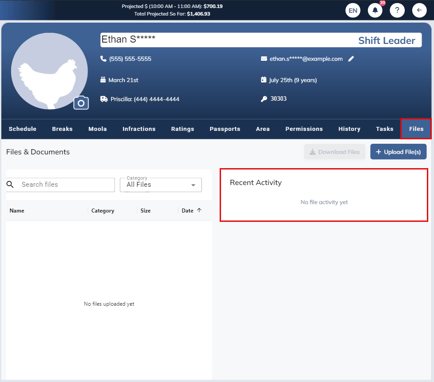
OneClick's Team Member Files section in an employee profile allows users to upload, view, manage, and download files and links related to that employee. A table lists all available files and links for the employee. If no activity exists, the message “No File activity yet” is shown.
Uploading Files and Links
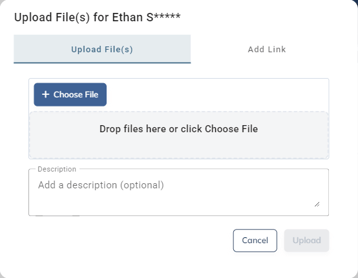
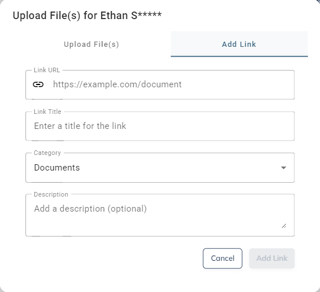
Selecting Upload Files opens the upload modal. Files upload successfully and appear in the list. Uploaded files can include a saved description. When adding a link, the following fields are displayed:
- Link URL
- Link Title
- Category (dropdown)
Added links appear in the files listing.
Downloading Files
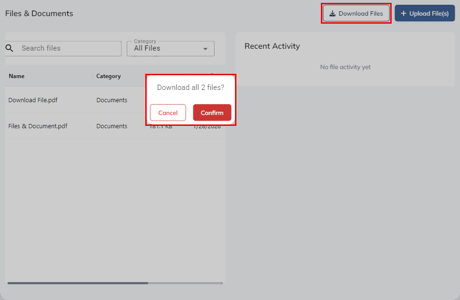
The Download Files button is inactive when no files are available. The button becomes enabled once a file has been uploaded. Once active and selected, you have the option to download all files.
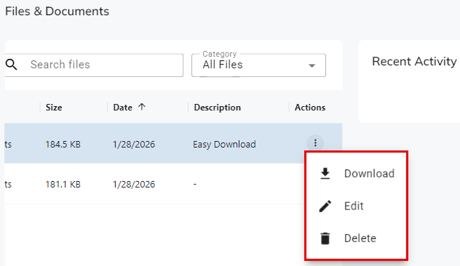
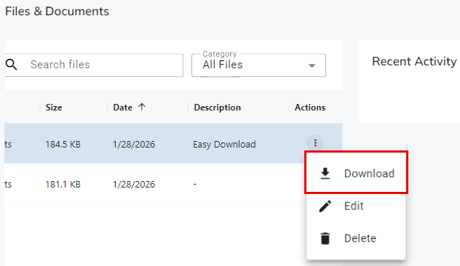
To download an individual file, select the menu option under the Actions column, then click Download.
Searching Files
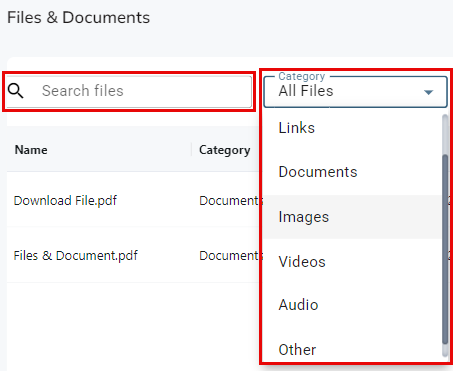
When a search term is entered, only matching files are shown. Clearing the search restores the full file list.
Users can filter files using the following options:
- All Files
- Links
- Documents
- Images
- Videos
- Audio
- Other
- Choosing All Files displays all files and links again.
File & Document Columns
The following columns are displayed:
- Name
- Category
- Size
- Date
- Description
- Actions
Files are sorted by Date by default. Clicking the columns; Name, Category, Size, Date and Description will sort by that column, ascending and descending.

File Actions
Each file includes the following actions:
- Download – Downloads the selected file.
- Edit – Updates file details.
- Delete – Removes the file from the list.
Deleting a file displays a confirmation modal. When confirmed, the file is removed from the list.