![Asset 4.png]](https://kb.oneclickapp.com/hs-fs/hubfs/%5B2024%20-%20Q1%5D%20Website%20redesign/Imagery/Asset%204.png?height=36&name=Asset%204.png)
Table of Contents
Overview
OneClick’s Moola system helps build a culture of positivity, recognition, and support within your store. Leaders can reward Team Members for great service, track their Moola activity, and allow them to use their earnings toward store-defined rewards. Team Members can transfer Moola to one another, redeem them through a distribution system, and build a strong culture of appreciation. The store has full control over how rewards are set up, maintained, and managed.
Building Moola Store
Stores can create custom rewards for Team Members to purchase with their Moola. Please note, all Moola store items are purchased and distributed through your store, not OneClick. When creating a reward, several fields help define how it works.
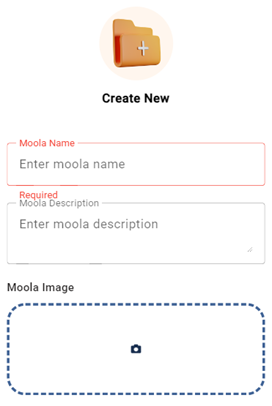
These include the Moola Name Field, where the reward name is entered, and a Description Box that explains its purpose. An Image Section allows uploading an image for visual representation.
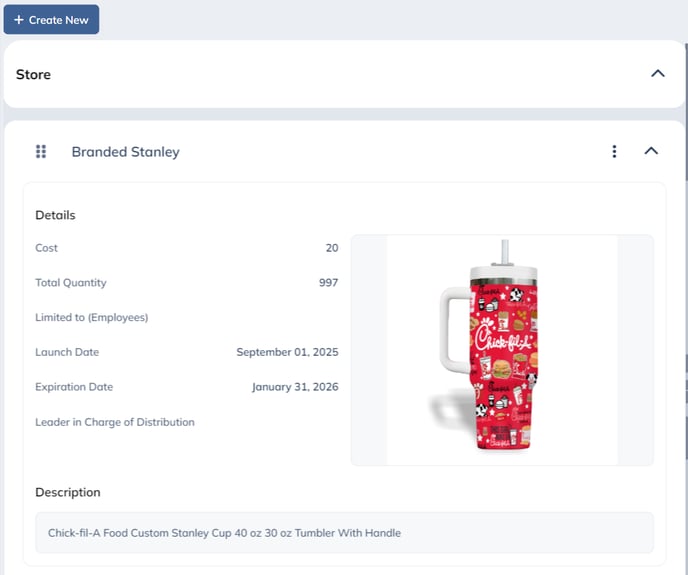
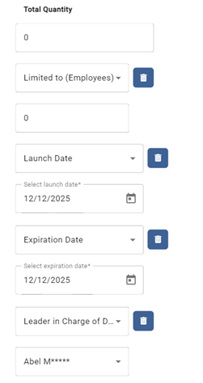
Additional details can be set such as Cost, Total Quantity, whether it is Limited to specific employees, the Launch Date, the Expiry Date, and the Leader in Charge of Distribution.
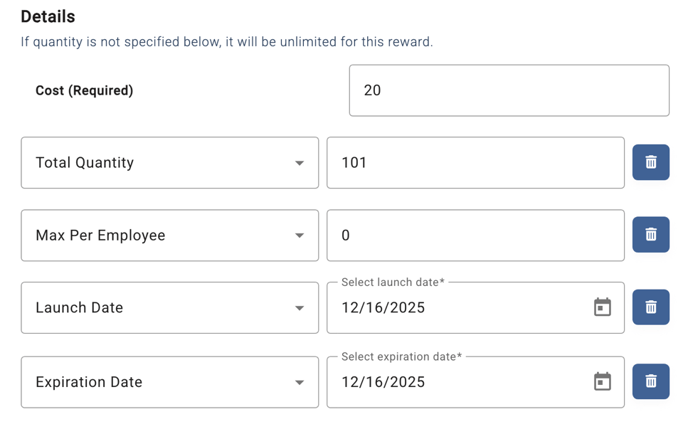
Stores that need more information can add extra fields using Add Another Detail. Additional details can be set such as Cost (required), Total Quantity (not added = unlimited), whether it is Max per Employee, the Launch Date, and the Expiration Date.
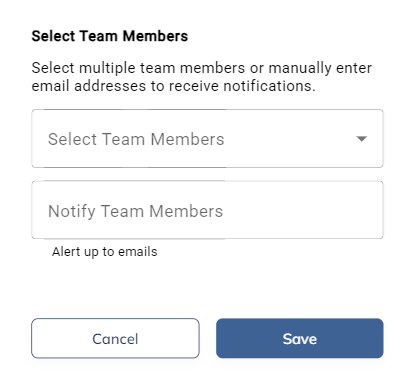
By default, Managers and higher will receive a Moola redemption request with in-app and push (email coming soon). You can add additional employees using the dropdown.
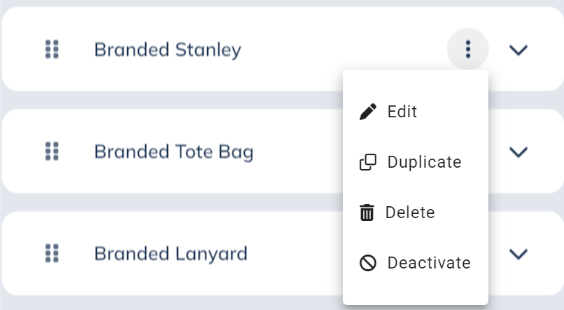
Leaders can later update rewards by selecting Edit from the Actions menu in the Rewards List. A reward can be removed using Delete, or temporarily paused using Deactivate, which hides it from availability. Deactivated rewards can be restored using Activate.
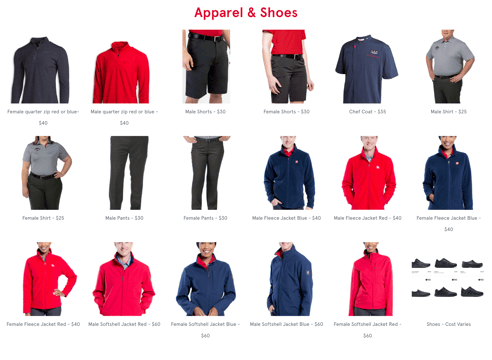
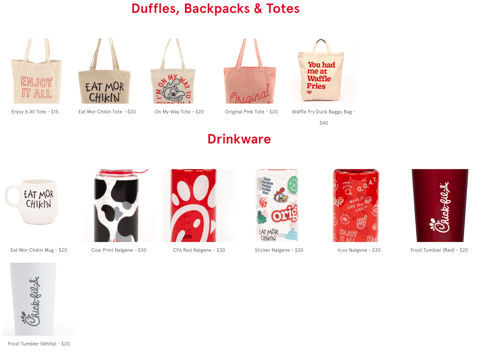
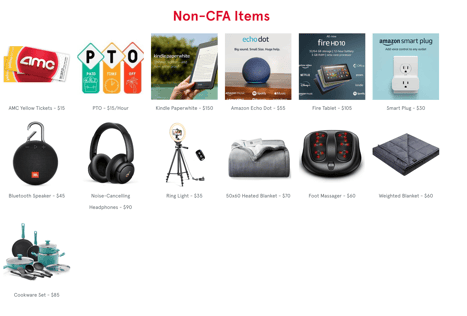
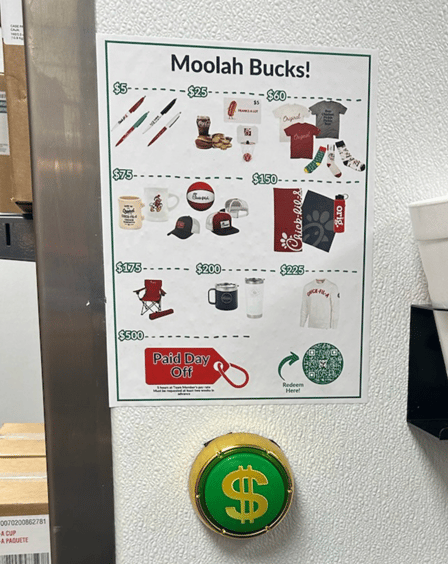
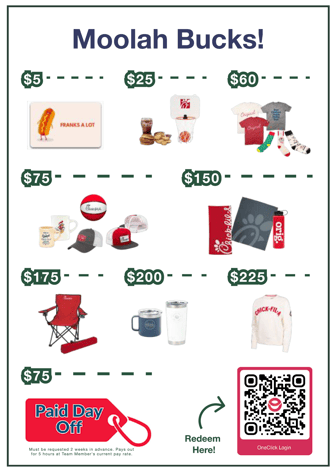
Need ideas for your Moola store items? Here are a couple we've seen!
Rewarding
Rewarding Moola bucks is easy and can be done in two ways.
Shifts Page
While on the shifts page, your Leaders will have access to the Rewards quick button on the upper left of the screen.
 or
or 
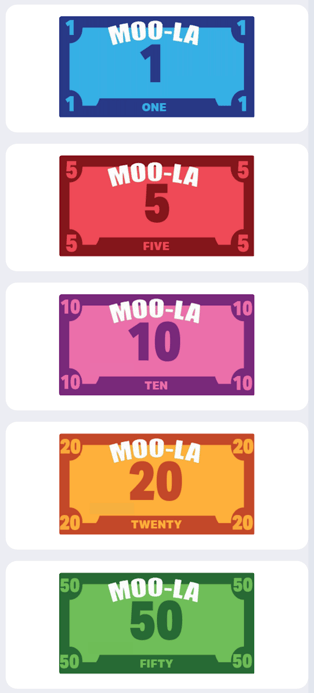
When you open rewards in the right column, you can now drag and drop amounts to names on the shift, this will automatically apply that amount to that Team Member. This provides a great visual if you want to show them the reward in person and show it being dropped on their name. Help build your team up one Moola buck at a time!
Profiles
A leader can also give Moola to individuals through their profile. To do this, simply click on the Team tab in the left menu, find the Team Member, click on their name. Alternatively, you can long press/click on their name in the lineup or layout. Then press Profile.
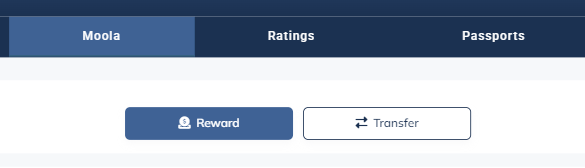
In their profile, click the Moola tab, then you can "Reward" them there.
Redeeming
Moola Rewards can either be shared with other team members or spent in the Moola Store.
Transfer to another Team Member - For example, Josh offers Emily $50 Moola bucks to cover his shift today. He can go Emily’s profile and press "Transfer" to send the bucks to her.
You can use your earned Moola to purchase items directly from the Moola Store. Follow these steps to redeem an item:
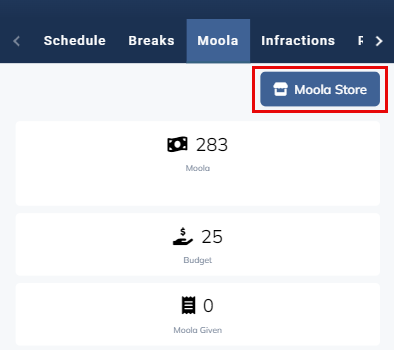
1. Open the Moola Store
-
Go to Your Profile.
-
Select Moola.
-
Choose Moola Store to view all available items.
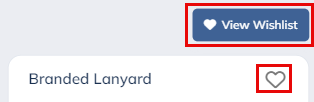
2. Save Items for Later
-
Tap the favorite icon on any item you want to save.
-
Favorited items are easy to find when you're working toward a specific reward.
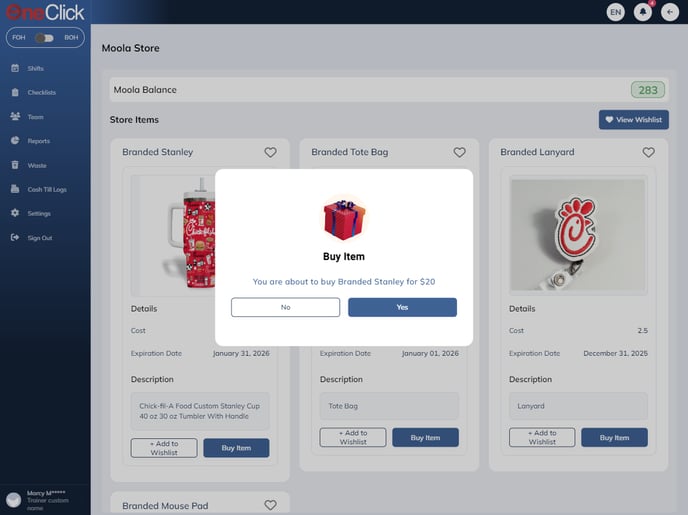
3. Buy an Item
-
Select Buy Item on the product you want.
-
Confirm your purchase when the pop-up modal appears.
4. After You Purchase
-
A popup notification will appear letting you know your purchase is pending.
-
Your request is automatically sent to your store leader for approval.

-
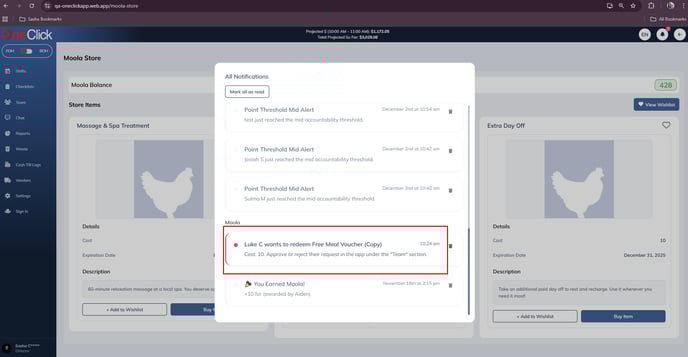
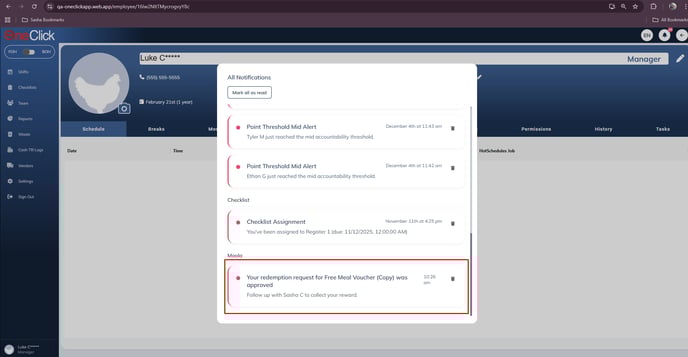
Moola reward redemptions notifies both the user who redeems the item and the leader responsible for fulfilling the reward receive notifications in real time.
Leader:
User:
Tracking
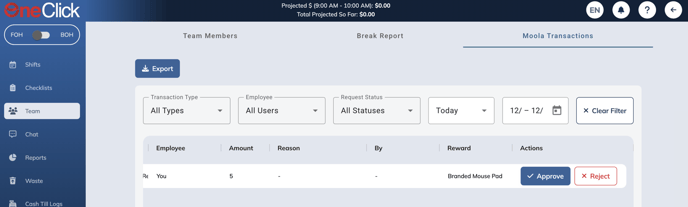
Once a Moola item has been requested, Managers and higher can see a list of the Moola Transaction Logs by going to Team – Moola Transaction Log at the top right. From here, Leaders can Approve or Reject requests. A filtering system allows you to track redemptions.
-
Filter transactions by date, type, user, and status
-
Quickly approve pending redemption requests from the same interface
Rejection
Once a Team Member request to purchase an item, the amount will automatically be deducted from your balance. If the request is rejected from the store leader the amount will be credited to your Moola. A history will be on the Team Members profile, which can be sorted by time frame, date range, or transaction type.
Budgets
By default your store has Moola weekly budgets setup for each permission level. Below is the list of the default weekly budgets for your store.
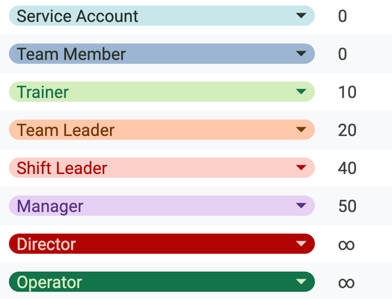
There are two ways to adjust budgets.
Adjust for Individuals
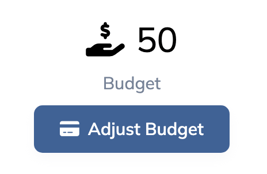
You can set a budget for an individual by going into their profile, selecting Moola, then pressing Adjust Budget. This amount will refresh weekly.
Adjust for Permissions
We can help you set your default budgets so that when someone new is promoted to a budget-receiving permission, they will receive the same amount as everyone else in that permission level. To make changes to this:
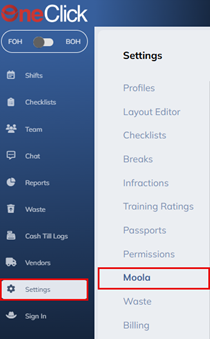
1. Go to Settings - Moola
2. Open Budget tab
3. Make adjustments to the permission budgets (refresh weekly by default)
Budget Settings
The Moola Budget Settings allow managers to configure and manage budget limits for different permission levels within OneClick.
Overview
Moola Budget Settings defines the budget allocation for each permission level.
This feature allows administrators to specify how much budget is given to each permission level on a weekly basis.
Only users with Manager-level permissions or higher can access and configure these settings. Managers can edit budgets for their permission level and for users with lower access levels.
Using Moola Budget Settings
To access Moola Budget Settings, navigate to the menu on the left, select settings, then navigate to Moola. The page will display a list of permission levels and their assigned budget limits.
Set Budget Limits
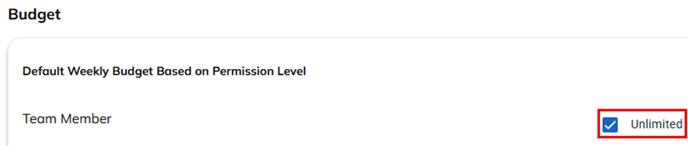
Configure the Moola budget level for each permission level by adjusting the value in the field to the right of the relevant permission level.
If the Unlimited box is ticked, this allows users with this permission level to operate without a set budget limit.
Note: Like directors and up can set moola budgets per a permission group in side of OneClick. For example a trainer will not be able to edit the budget settings for a team member even though they are a higher permission level. You need to have a director level permission to edit the budget settings. You need to have “manage Moola permission” (by default, manager) in order to change the Moola budgets for everyone.
Reports
Moola reports can be found in the Reports tab on your left menu. Please be patient as your report is loading. You can sort your report by timeframe or date range and you can also export the file.
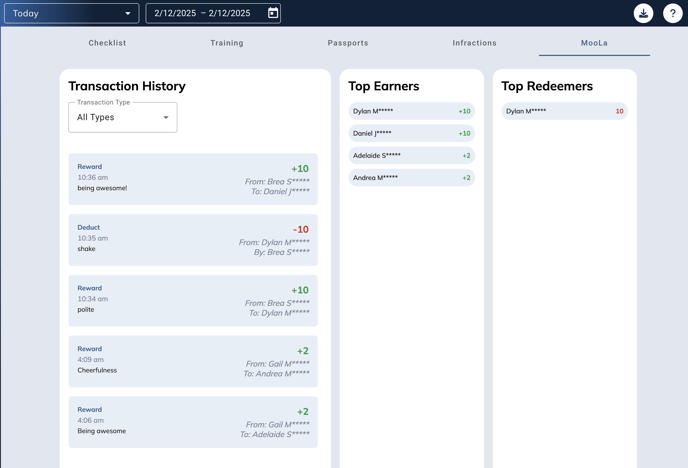
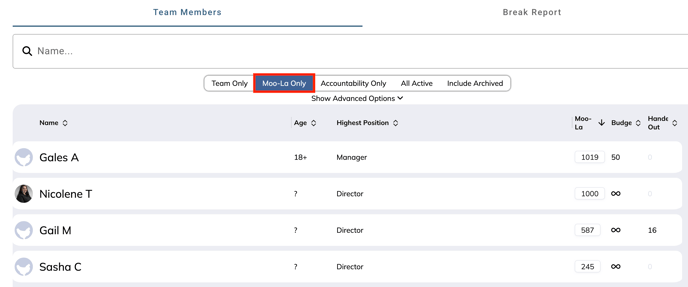
You can also view Moola in list view using Teams tab on the left menu. Once there, you can press "Moola Only" to see a list of all the Team. You can then sort by name, age, highest position, Moola amounts, budget, or handed out.
Moola FAQs
Are there notifications for Moola?
Yes!
- Get Moola – Alerts when you receive Moola and the reason why it was issued.
- Charged Moola – Alerts you when someone charges you Moola and the reason
why it was charged. - Moola Redemption Requested – informs anyone with access to the Moola
settings when a team member requests a Moola reward. Also informs additional
leaders or team members that are added to the item in settings. - Moola Redemption Approved – Informs team member when their request for
Moola reward has been approved.
Is there a limit on the amount of Moola someone can receive?
No, but you can monitor your Moola and ensure Team Members are using the rewards.
What if a Leader is playing favorites and giving too much to one Team Member?
You can always adjust an individuals budget to ensure they are not abusing the system.
Do Team Members really love Moola?
YES! They love doing "Second Mile Service" and being celebrated by their leadership! Another fun tip - make it a game! Have monthly contests to see who can earn the most Moola!