
Table of Contents
Overview
Infractions help track negative behaviors or rule violations of Team Members. By keeping a careful record of these items, your store can meet compliance policies and uphold standards. Especially when paired with Moola, infractions can help balance out your team culture.
To learn more about Infractions, please watch the video below.
⬆ Back to TopIssuing
To begin the process of issuing an infraction, you can follow these steps:
| 1. Click the Team tab in your left menu. | |
| 2. Search or find the person receiving the infraction. Go to their profile. Alternatively, you can access a Team Members profile who is on the roster or layout by long pressing/clicking on their name, then pressing "Profile". | 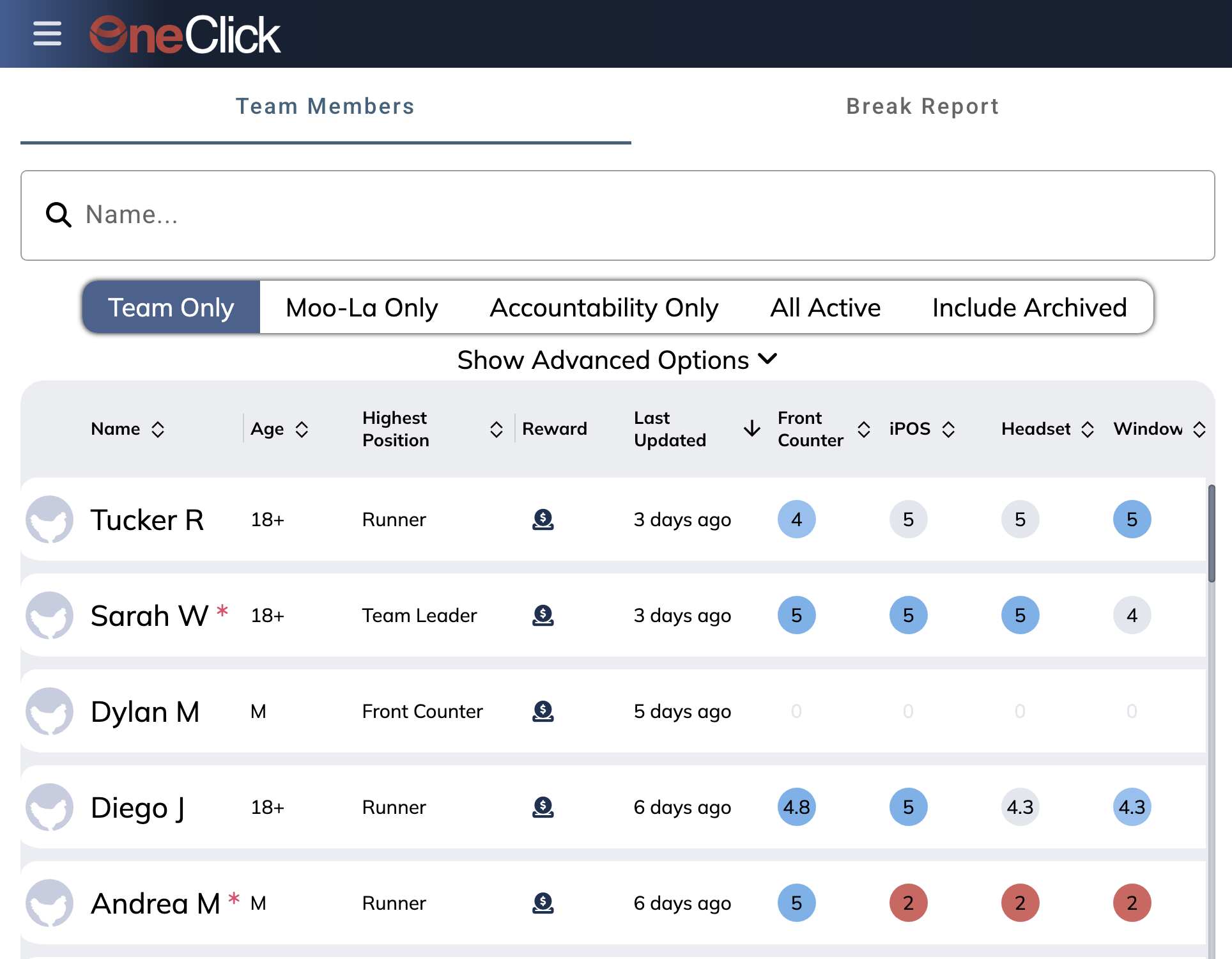 |
| 3. Click "Infractions" on their profile. | 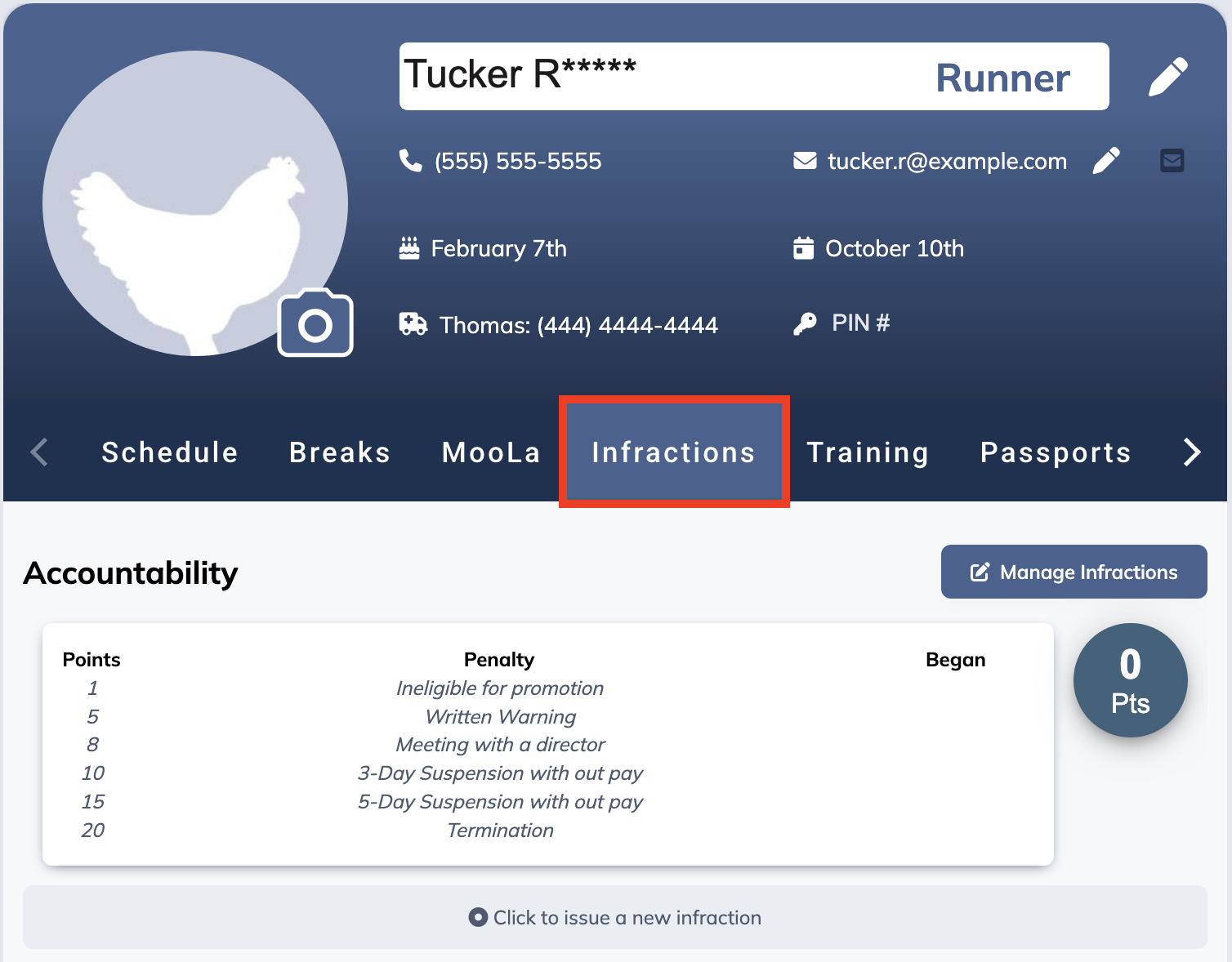 |
| 4. Press "Issue a New Infraction" | 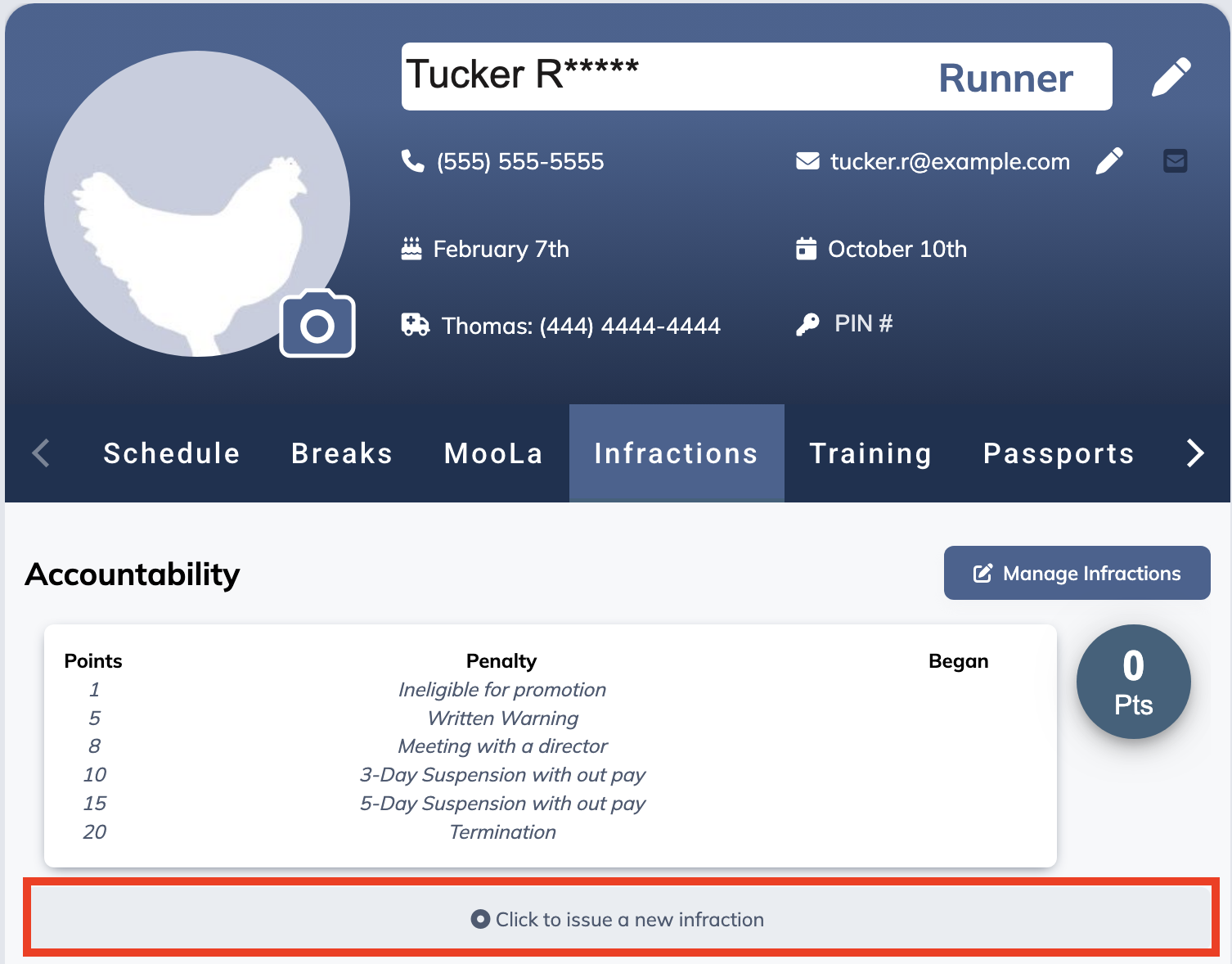 |
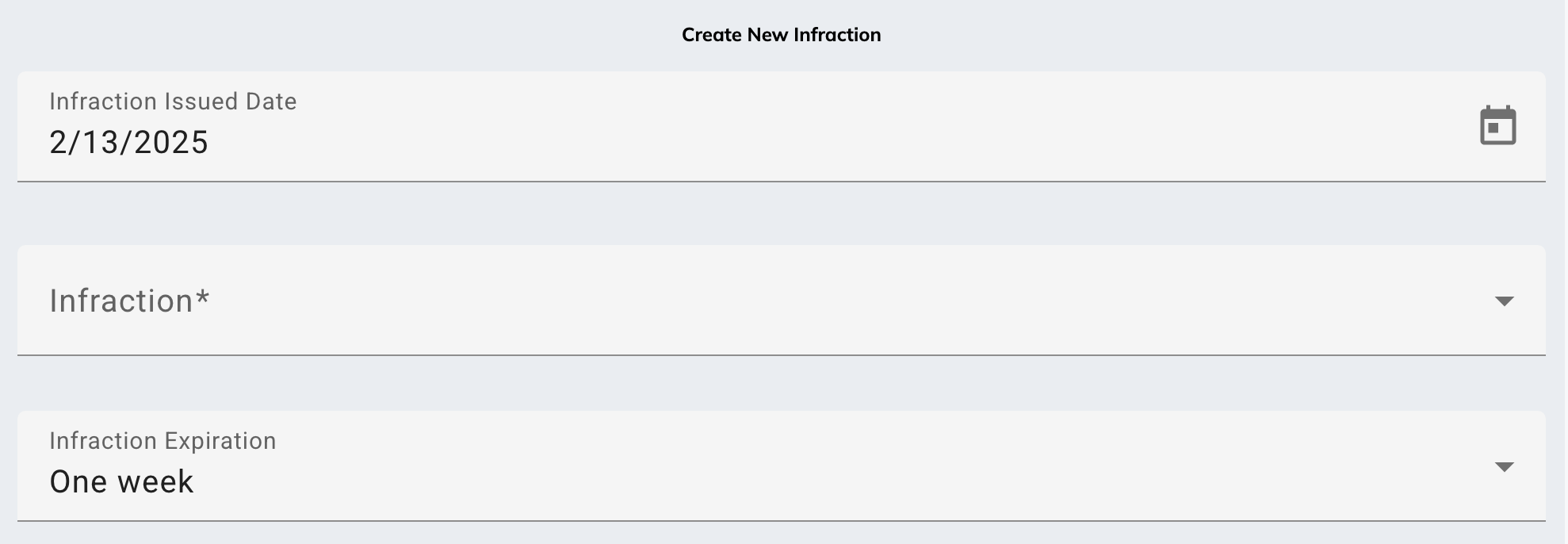
| 5. Add the infraction issue date, infraction type, and expiration. |
|
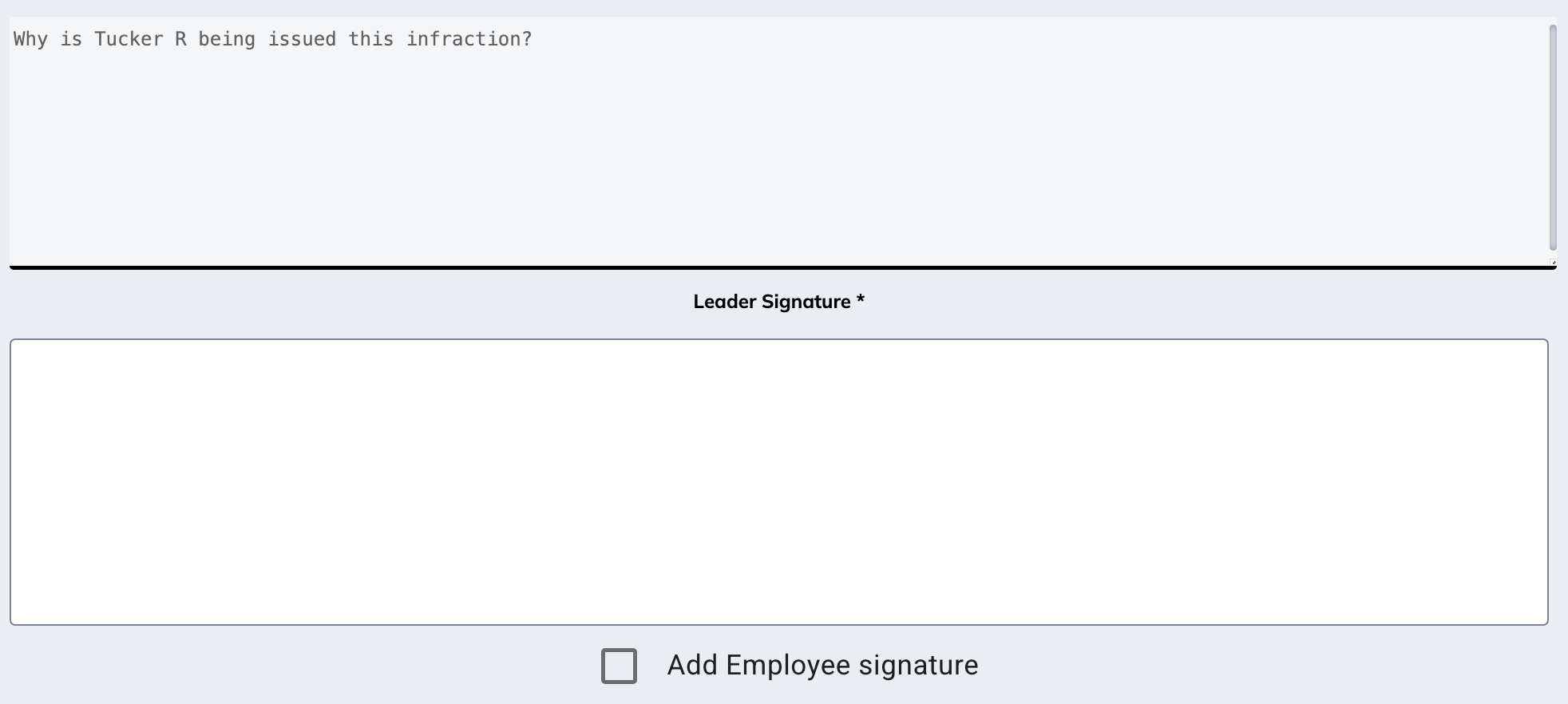
| 6. Add notes. By default, the Leadership signature is required and Employee signature is optional. Learn how to configure this setting here. |
|
| 7. Press "Submit Infraction" |  |
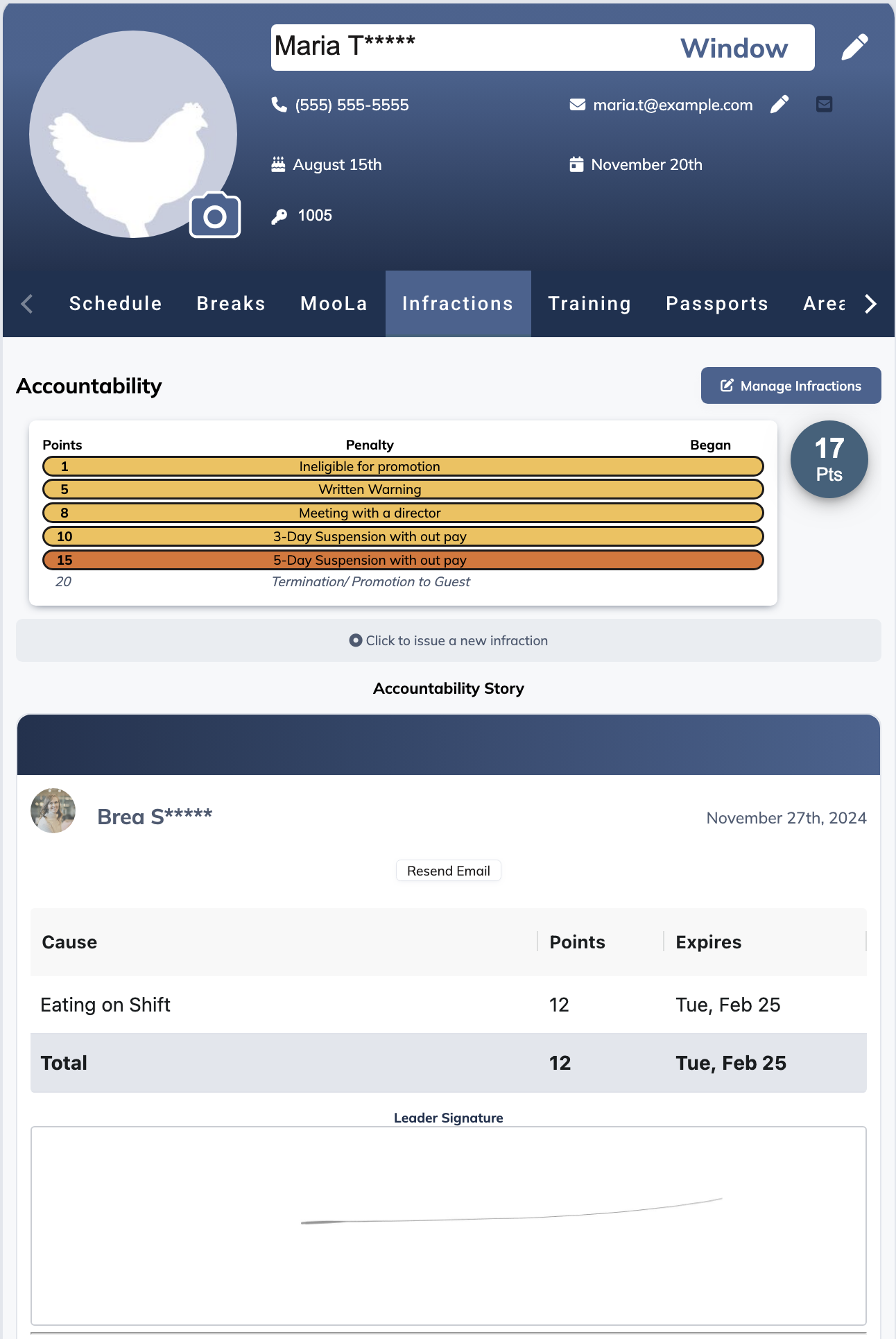
| 8. You will see the infractions apply to their profile with the total points and threshold. | 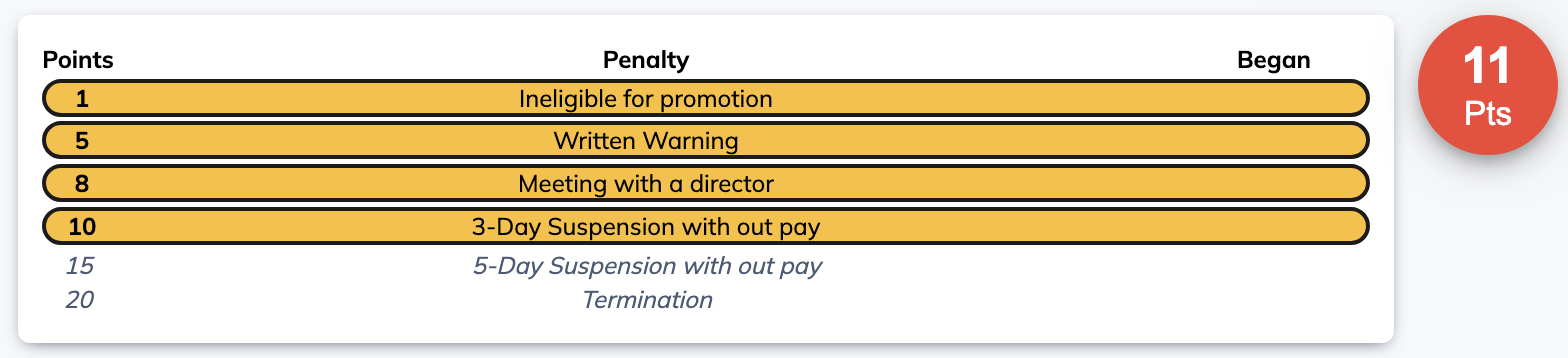 |
To learn more about Issuing Infractions, please watch the video below.
History
By default, Shift Leader level and higher are able to view the Accountability Store or the history of infractions. This history will never go away unless a Director or Operator deletes an infraction. Infractions can be edited by Manager level and higher.
To learn more about Infractions History, please watch the video below.
Customizing
Customizing your infractions is easy and can be done in-app. Manager level and higher are able to access the settings page. To access the settings page for infractions:
- Open "Settings" in your left menu.
- Click "Infractions".
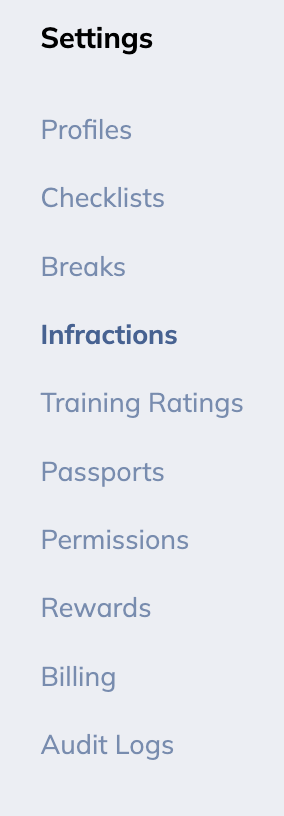
Below is a list of all the customizations you can do for infractions. Click on the links to be taken directly to that section.
|
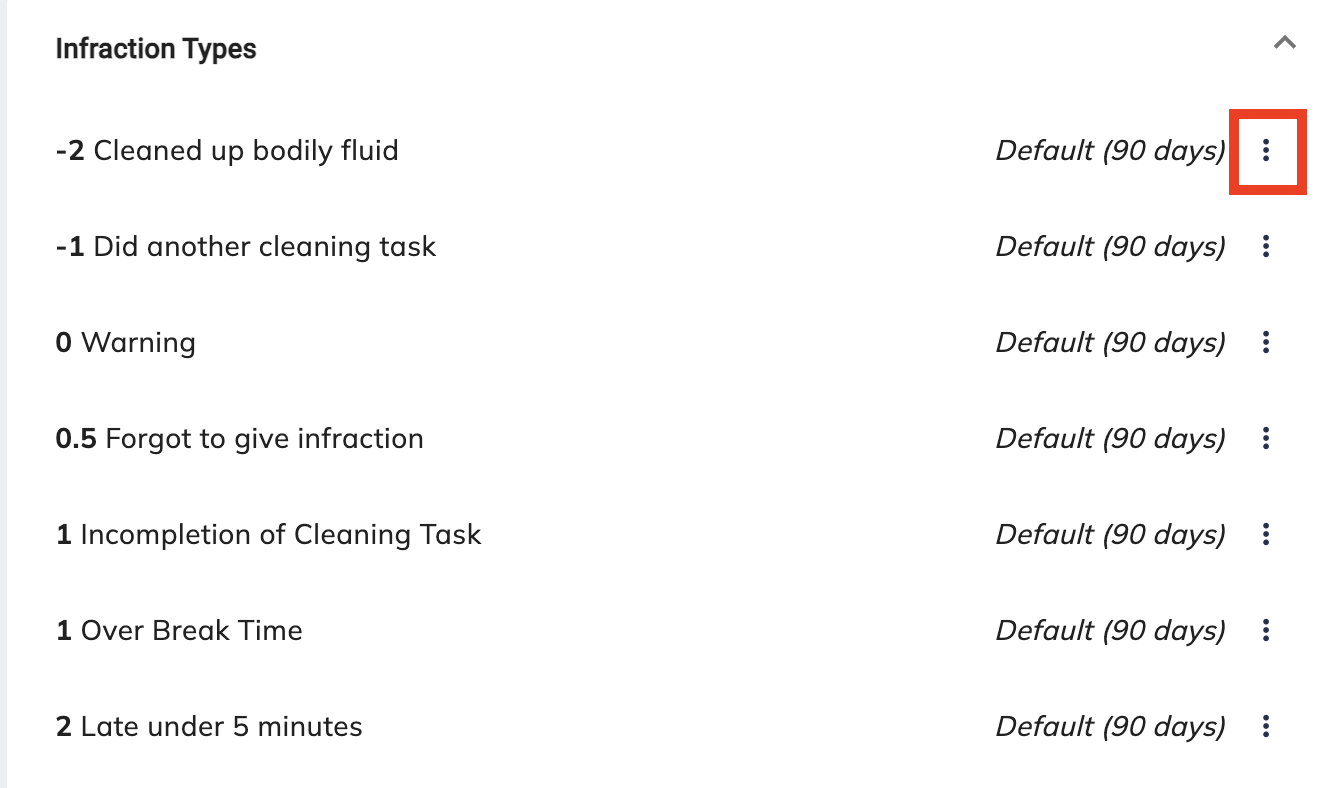
Infractions Change the infraction name, point value, and expiration by click on the three dots on the right of an infraction or clicking "+" at the bottom to add one from scratch. |
 |
|
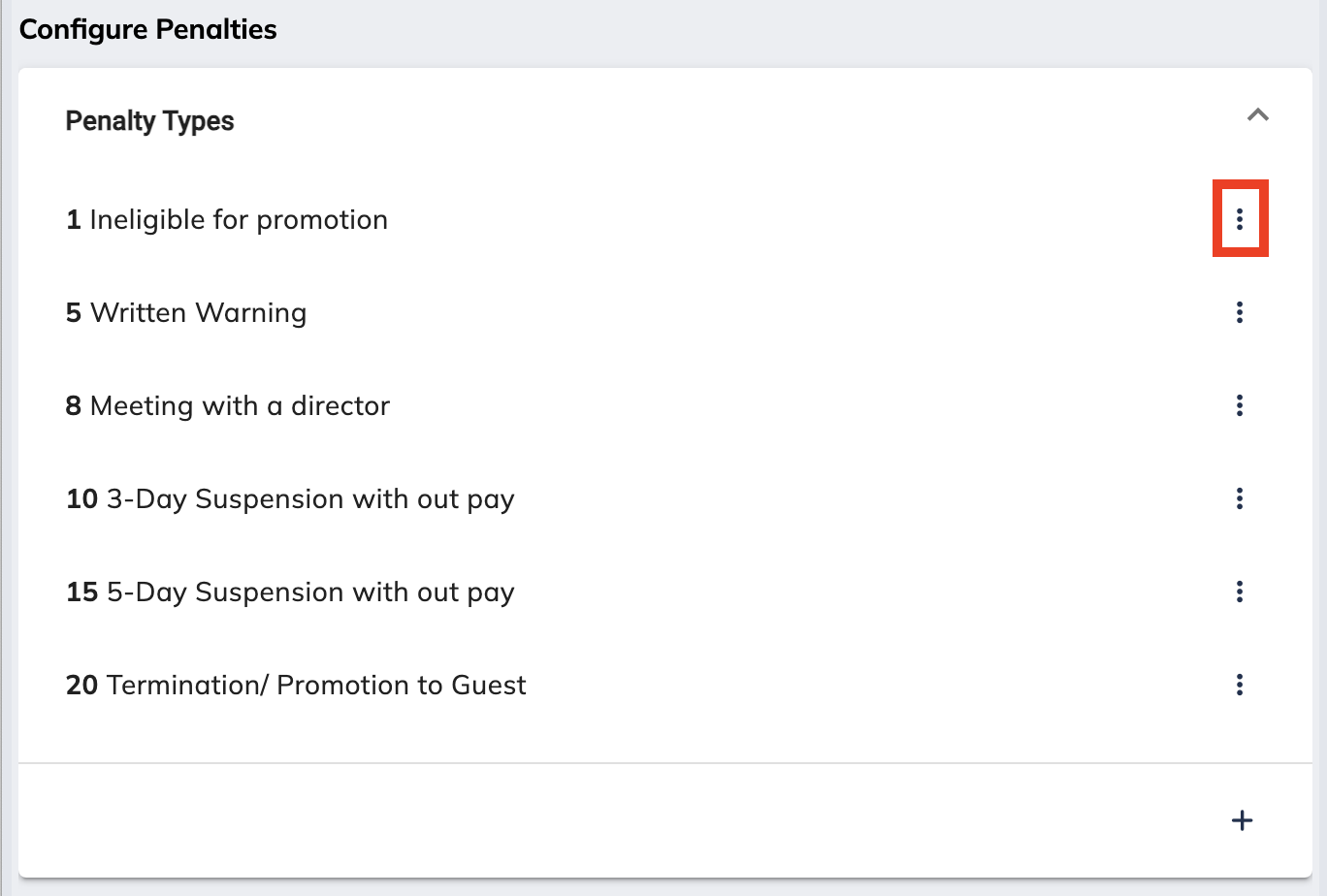
Penalties Update the penalty types by pressing the three dots on the right of a penalty or clicking "+" at the bottom to add one from scratch. |
|
|
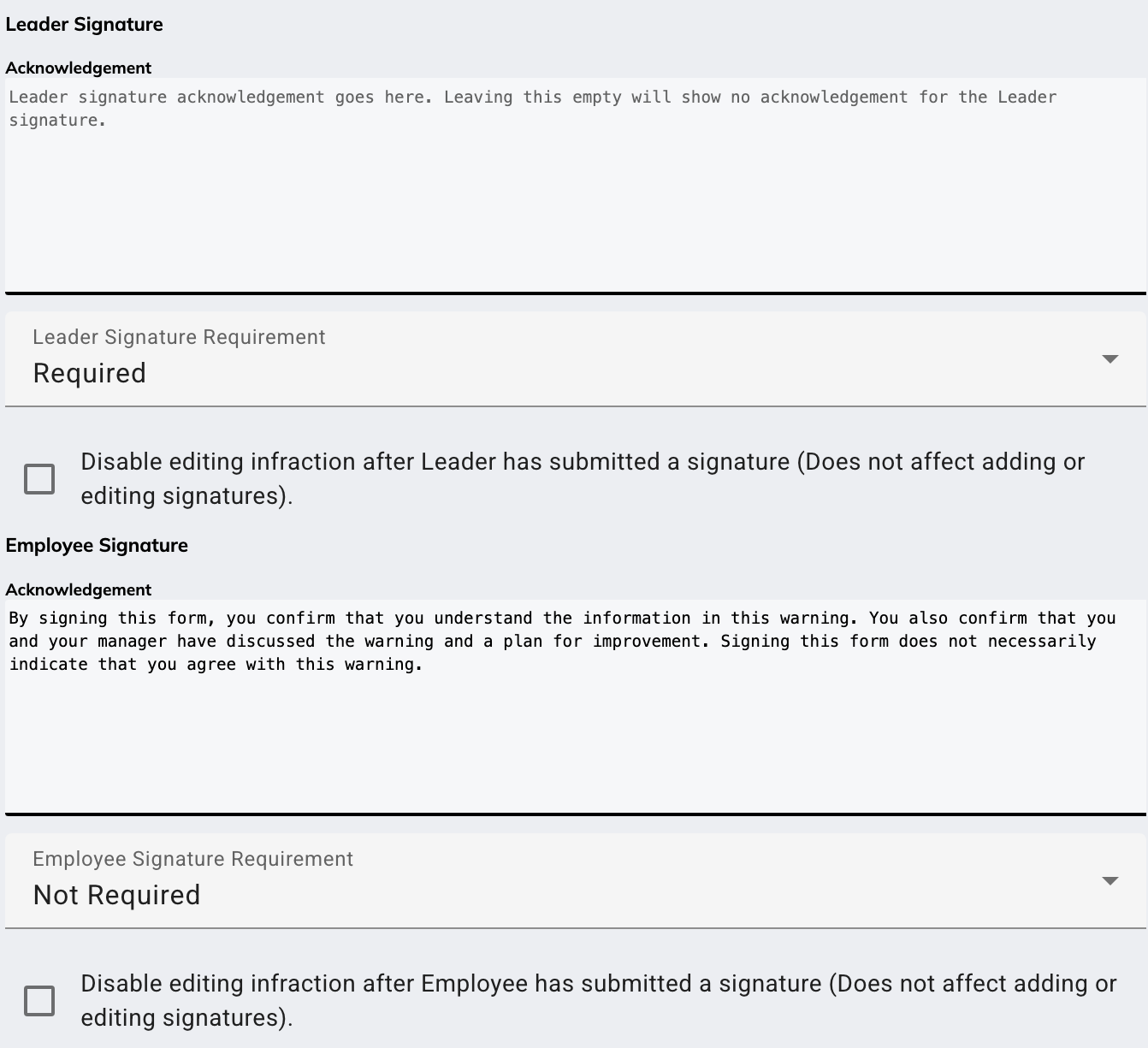
Signatures These three checkboxes determine general or “global” settings for your infraction signature.
Note: These settings will override all other infraction settings.
In the “Acknowledgement” text box, you can write an acknowledgement that will be displayed before a leader adds their signature to an infraction. In the dropdown labeled “Leader/Employee Signature Requirement,” you can set whether a signature will be Required, Not Required, or Optional. Using the checkbox, you will be able to allow or disallow the signature being edited after the infraction is submitted. |
|
|
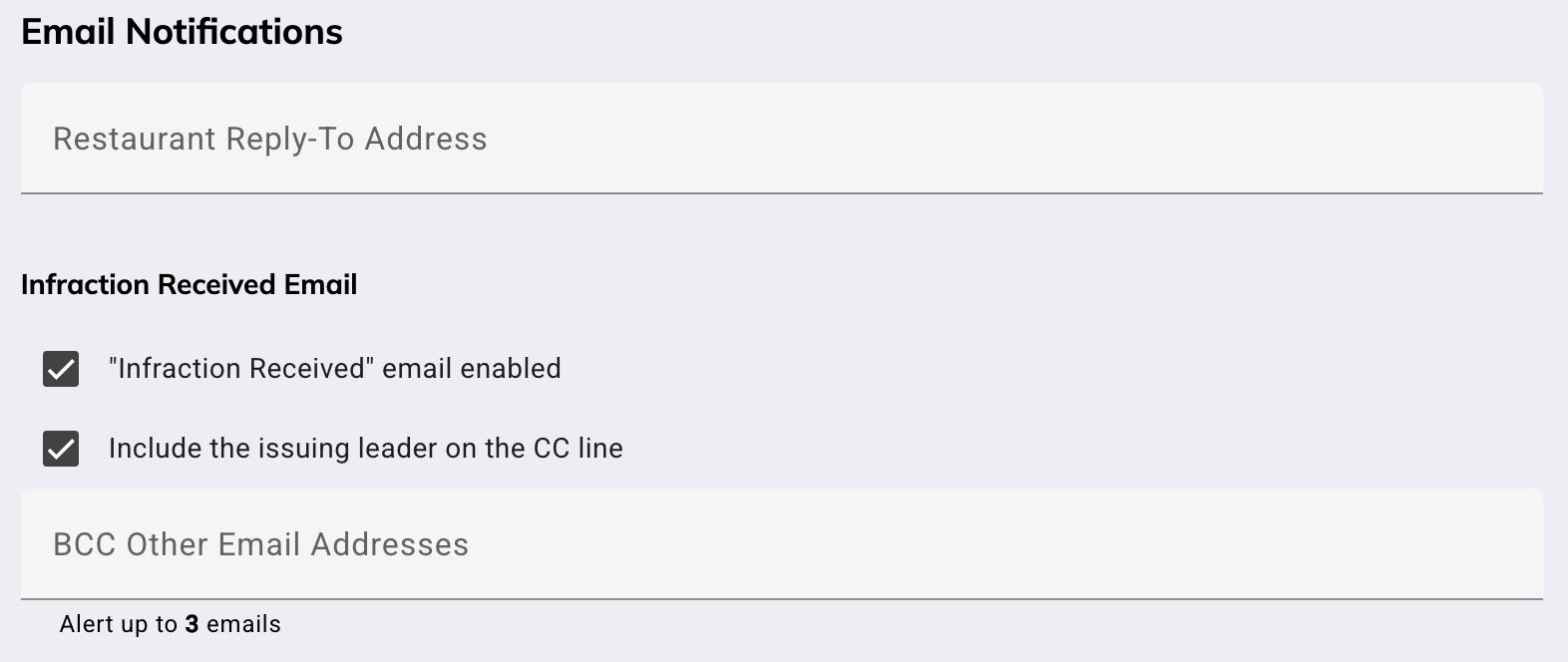
Email Notifications "Reply-To Email" is for the Team Member to reply to email notification of infraction. Otherwise, it will be a non-reply email. "Infraction Received" email enabled = Team Member receives email notification. To see email example, go here. |
 |
|
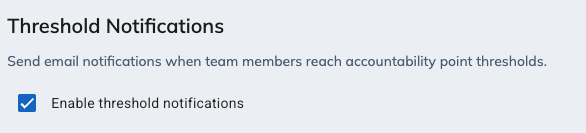
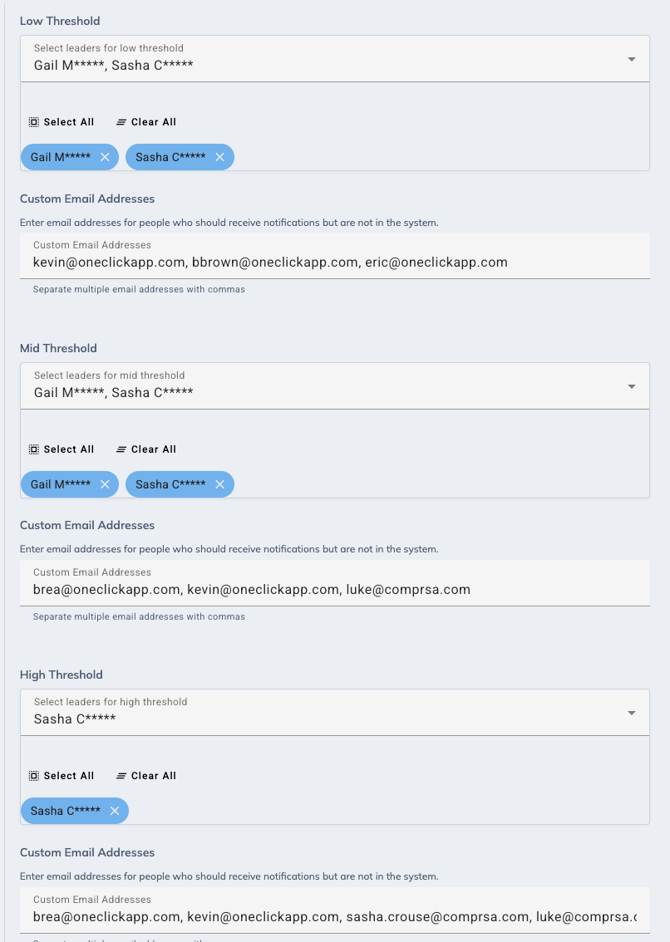
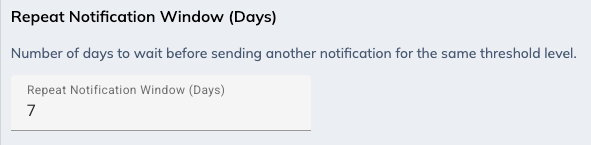
Threshold Notifications Get threshold notifications for a low, mid, and high infraction penalty. To enable this, ensure the "enable threshold" box is checked.
Configure the point values for each threshold.
Add the accounts or emails of those who need to be notified.
Decide how you would like the system to deal with repeat notifications, or the number of days the system to wait before sending another notification for the same threshold level. |
|
|
Other Settings
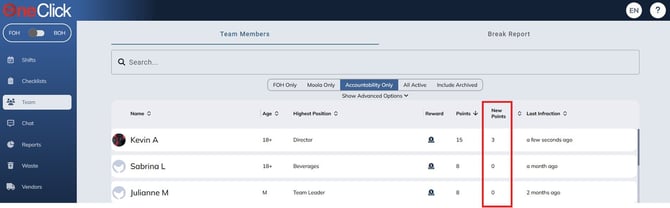
New Point Duration will show the total points in the given time period. If that is every month (or whatever timeframe you set). It takes the current date minus the new point duration, then any points will show.
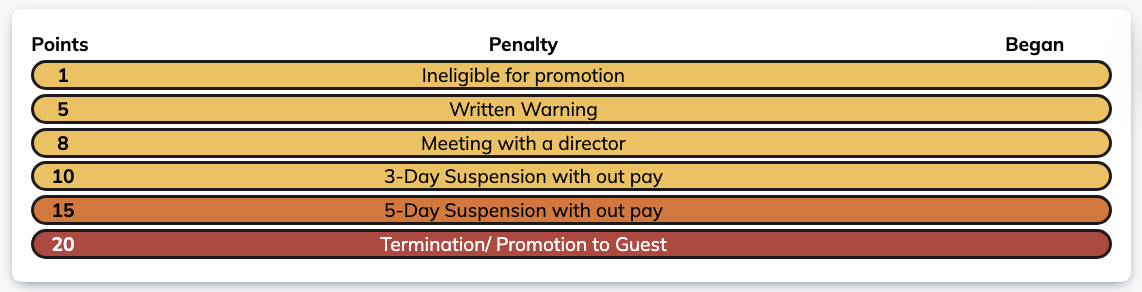
The significant point threshold is at what point threshold will the penalty show as red. By default, the threshold is 20 points. |
   |




To learn more about Infraction Customizing, please watch the video below.
Employee infractions email example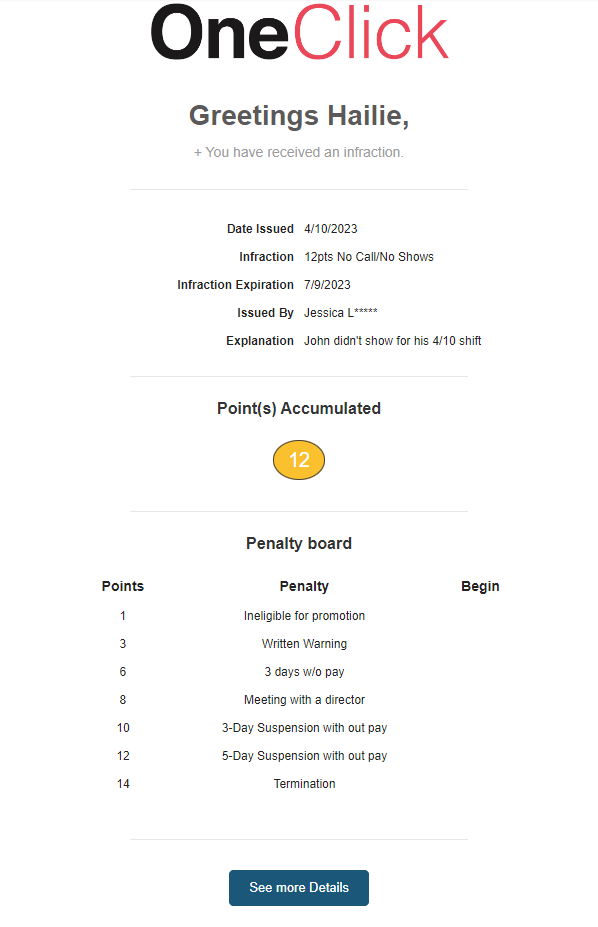
Export Infractions
Export Infractions lets you pull a store's infraction records from OneClick as a PDF or CSV. You'll find it under Settings, in the Infractions section, inside the Export Infractions panel (at the very bottom). It's split into three sections, each with its own Select Employee field and its own Export Infractions button filling one out doesn't affect the others.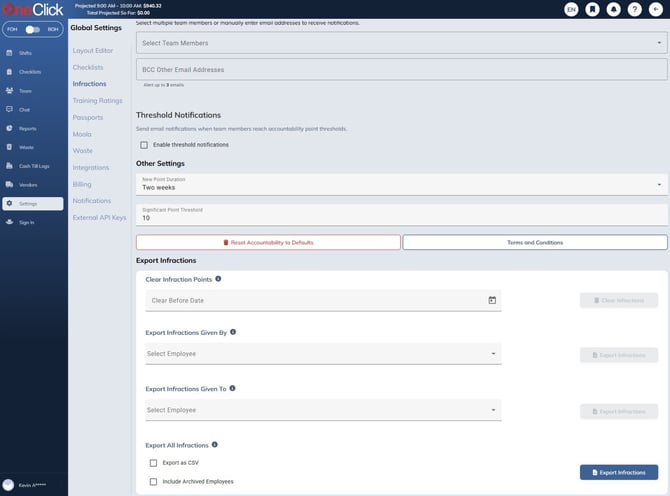
Clear Infraction Points
After you choose a date, any infractions issued before that date will have their points set to 0. The history will remain.

Export Infractions Given By
Select one or more leaders from the dropdown, then click Export Infractions to export only the infractions they issued.

Export Infractions Given To
Select one or more employees from the dropdown, then click Export Infractions to export only the infractions they received.
Export All Infractions
Skip the employee filters and click Export Infractions here to pull every infraction on record. Check Export as CSV first if you'd rather have a spreadsheet than the default PDF (one page per person) the CSV lists who each infraction was given to, who reported it, an ID, when it was submitted and issued, total points, the points and cause behind each infraction, whether the leader and employee signed, and any written explanation. Check Include Archived Employees to fold in infractions for archived team members; this requires the View Archived Team Members permission.
Hover the (i) icon next to any of these three options for a quick explanation of what it does. If none of the employees you selected have any infractions on record, OneClick shows a “No infractions found” message instead of exporting an empty file.
A few things to keep in mind: exporting requires the Manage infraction settings permission, which is on for Managers by default.
If there's a way we can serve you better, or you have ideas for new features, visit our feedback page or contact our support team.
FAQs
Can we use negative points on infractions to indicate positive behavior?
Yes...with a word of caution. Implementing a positive AND negative point system within infractions may create problems and confusion. We recommend keeping all negative records in Infractions and all positive behavior in Moola. This will allow more accurate data for each Team Member and allows your team to issue positive rewards based on individual performance, not necessarily to balance out or remove negative infraction points. For instance, if Mary has 0 infractions and the Leader wants to reward her for doing "Second Mile Service", they will be unable to issue it because the point system is intended to count-up and would not go into the negative values. Alternatively, the Leader can give Mary 10 Moola bucks, which will still give her that positive feedback without it being attached to infractions.